

📆 My default work schedule
To declare your working time, go to the new page available from the left-hand menu: “Time declaration”. On this page, you can:- view your default working hours
- move from one week to another to access the week for which you want to declare working time
- see, for each week, whether it has already been validated or not
- submit your timesheet
💡 Tip
✏️ Editing my worked hours
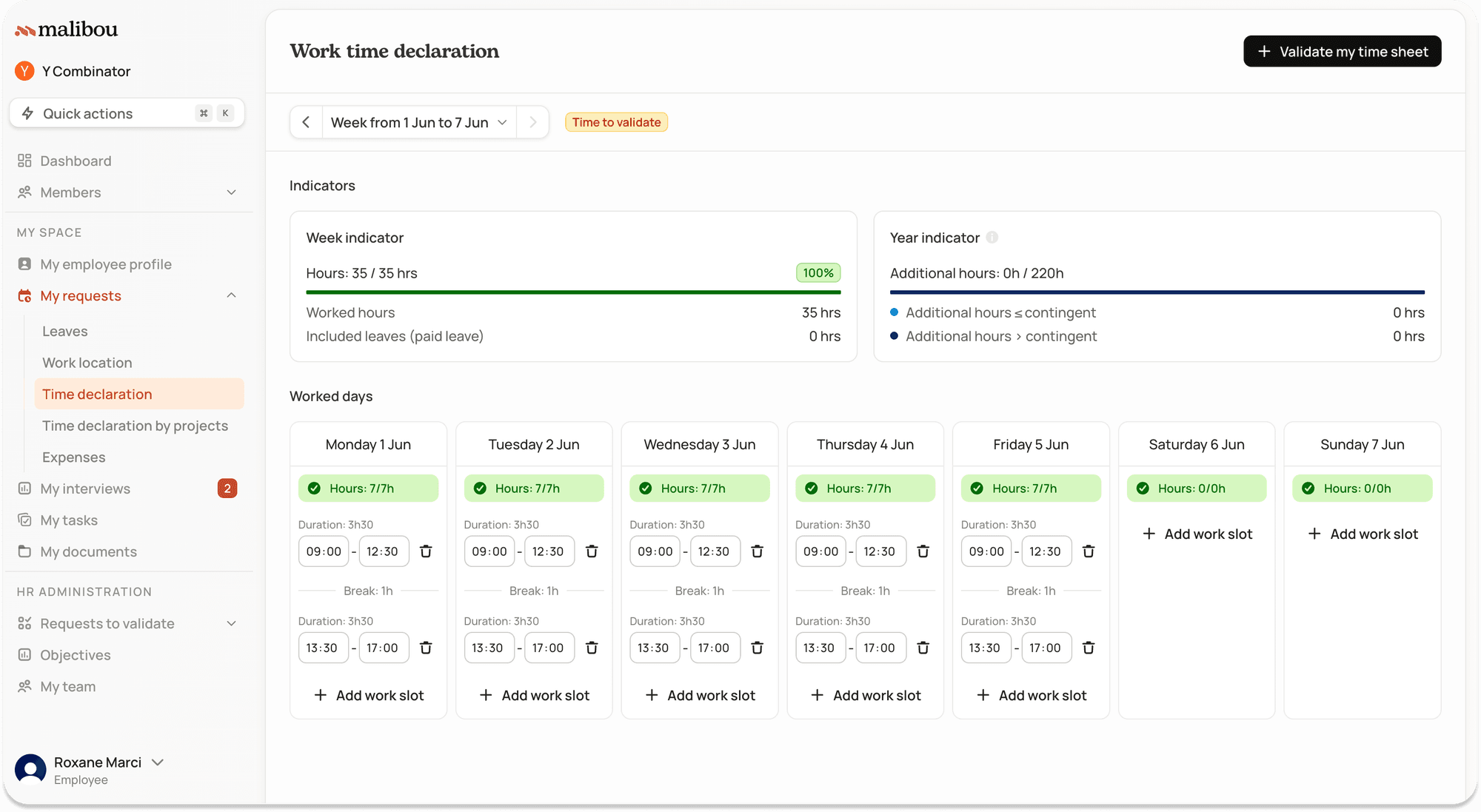
- delete using the small 🗑️ (“trash”) icon
- add by clicking “+ Work time slot”
💡 Make sure the week is finished and all your hours are final before submitting your timesheet.
🌴 Taking leave into account
If you are absent for a full day, your leave will be marked with a “Leave” indicator, and you won’t be able to declare working time for that day. If you haven’t declared your leave yet, make sure to do so before submitting your timesheet, on the dedicated page “My Requests > Leaves”. If you are off for half a day, you will still be able to declare working time for that day. Be careful to declare the correct number of hours for a half-day absence.🌜 Night Hours
If your job requires you to work night hours, these hours will be automatically detected in malibou based on your company’s settings and sent to payroll. You can identify these hours thanks to the small moon icon displayed next to the time slot.🤝 Submitting my final working time to my manager
Once your work week is finished and your hours are final, simply click “Validate my timesheet”.- Your HR manager will be notified and will need to validate your timesheet.
- You will no longer be able to edit your declaration. Contact your HR manager if changes are needed.
- Weeks you’ve submitted are labeled “Time submitted”.
- Weeks that have also been validated by your HR manager are labeled “Time validated”.